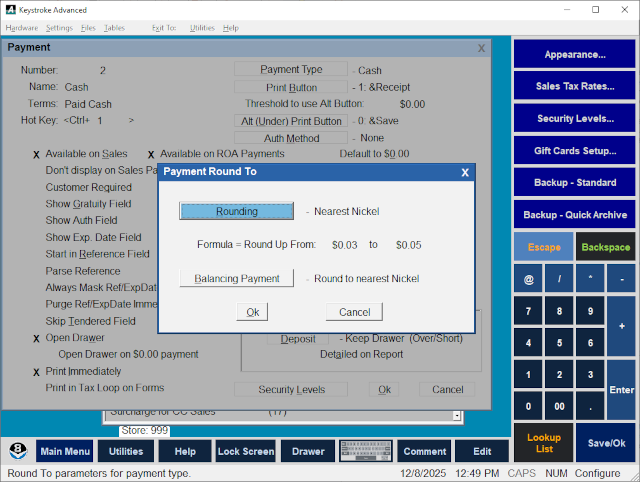
The Sales Payment Types Round To setting is used to automatically round the tendered amount to the nearest nickel (Nickel,
Dime, Quarter or Dollar) with an option to set the Rounding From and Rounding To values as needed.
The Rounding button displays the Select Rounding Type list which includes many predefined options. Once an option is selected, the Formula used to generate that option is displayed as "Round Up From" with the respective values. For example: "Round to Nearest Nickel" is "From $0.03 to $0.05" which means any value with a remainder of 0.03 or higher is rounded up to the next amount divisible by 0.05 and any value a remainder of less than 0.03 is rounded down to the previous amount divisible by 0.05. The From and To values for the formula may be manually edited by selecting the Manual option from the Select Rounding Type list. For example, to always Round Up to the next Nickel, use the Manual option and set the From value to 0.01. Note that always rounding up may not be allowed depending on the rules and/or laws governing the store.
Set the Balancing Payment to the Sales Payment Type to use for the balancing amount. The Balancing Payment setting defaults to the same Sales Payment Type but is best set to a similar Sales Payment Type (that is not displayed on the Sales Payment list) to balance the rounding amount.
To enable the Round To setting for a Sales Payment Type:
- Select Sales Payment Types from the Configuration Manager Tables Menu.
- Select the Payment Type from the list.
- Press [Enter] to display the Payment Type Settings screen.
- Enable the Round To / Nearest Nickel settings.
- Set the Balancing Payment option.
See:
Sales Payment Types - Settings
Configuration Manager Contents