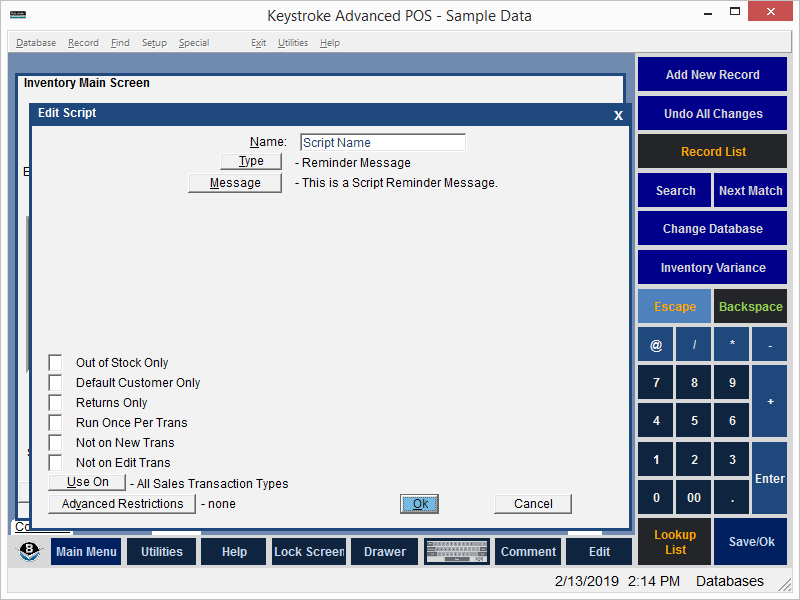
The Reminder Message Script displays a message to the Clerk. It is commonly used in conjunction with other scripts to provide special instructions.
To set up a Reminder Message:
- Use the Type button to select Reminder Message.
- Select the Message button.
- Enter the message.
- To display the message only when the Scripted Item is out of Stock (Quantity
On Hand is less than 1), turn ON the Out of Stock only parameter.
- Press [F10] or select the [OK] button to save the Script.
Reminder Message Script Parameters:
Out of Stock Only - run script only if the Scripted Item is out of Stock (QOH<1).
Default Customer Only - run script only if the Customer is the Default Customer (the Default Customer is normally Customer 0 but can be changed in Configuration Manager, under the Settings Menu).
Run Once Per Trans - run script only once per transaction.
Not on New Trans - do not run script if the transaction is new.
Not on Edit Trans - do not run script if the transaction is being edited.
[Use On] - select the Transaction Type (or All Types) on which the script will run.
*[Advanced Restrictions] - run script only within any of the following restrictions (any of which may be combined): Date Range, Time Of Day, Day Of Week, Day Of Month, Min Qty, Max Qty, Check All Line Items (adds up the Qty of all the line items that match the Filter and compares that to the Min/Max settings. In most cases, if this
parameter is turned on, then a filter should also be used otherwise all line items will be added up), Script Filter.
* - requires Keystroke Advanced license.
See:
Scripts Contents